
How to use OrientDig Findsheet
Follow a product from the spreadsheet to the OrientDig order screen, warehouse inspection and international shipping.
Find the product and open it on OrientDig
Search the spreadsheet by product name, Weidian ID, or link. Open the item and choose Buy on OrientDig, or copy the original Weidian link into the search field on the official site.
Find a product
OrientDig homepage Review the listing and sign in to order
Check the original seller link, item price, options, and domestic delivery on OrientDig. Choose the variant and quantity when available. If OrientDig shows a restriction or disables checkout, choose another listing or contact its support. DIY Order requires an OrientDig account.
Open official DIY Order
OrientDig DIY Order sign-in Inspect warehouse photos
Use the QC tool to look up saved photos by the exact Weidian ID. Compare the available photos with your intended variant. A saved example can show a different color or design for the same listing. After ordering, inspect the photos for your own item in the OrientDig warehouse before submitting a parcel.
Open the QC example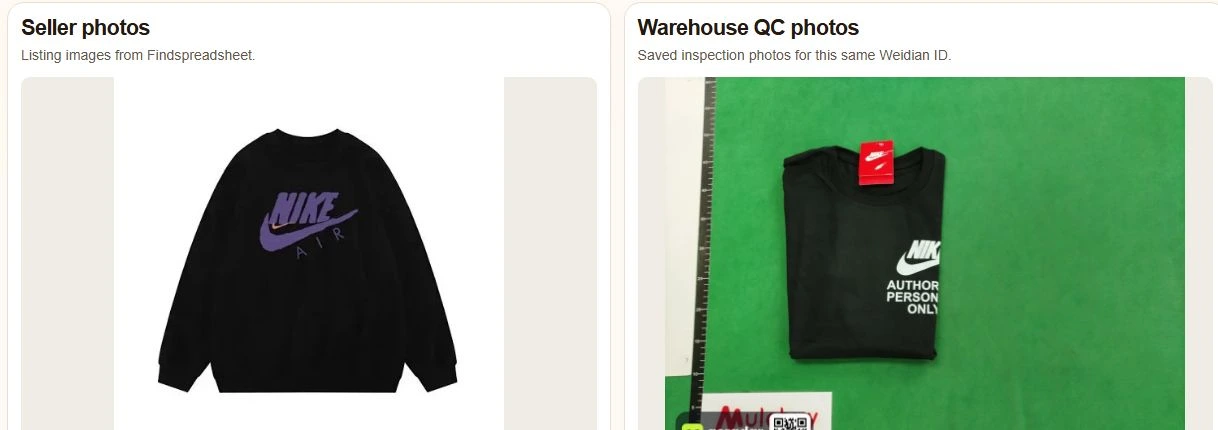
OrientDig Findsheet · saved QC example Estimate international shipping and submit your parcel
Open the official estimator and enter the destination, packed weight in grams, and dimensions in centimeters. Compare available routes and restrictions. When the items are ready, select them in your warehouse and confirm the final charge in your OrientDig account.
Open the official estimator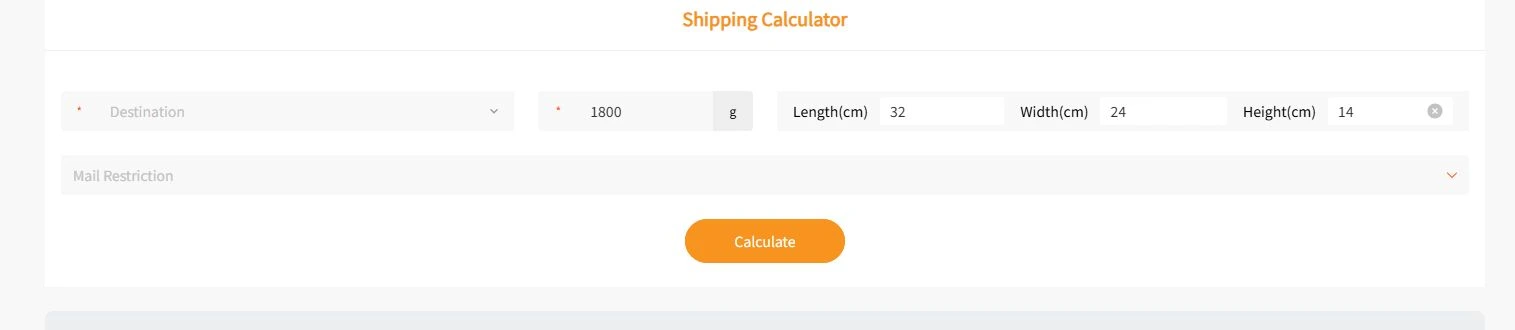
OrientDig shipping calculator · sample measurements